


7. How to Make Your Loyalty Page Available on Your Website
The Loyalty Page is a web page that lets you promote your Crowny Loyalty Program on your own website. You can make your Crowny Loyalty Page available on your own website using a custom subdomain, such as:
https://loyalty.your-website.com
This is done by creating a CNAME record in your DNS provider and pointing it to the unique URL assigned to your store.
Step 1: Get Your Crowny Loyalty Page URL
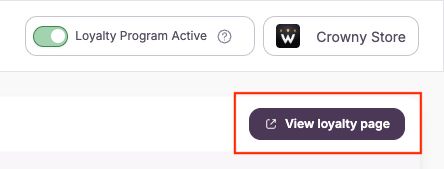
In the Crowny Portal, go to Communications → Loyalty page and locate your unique URL (purple button in the top right corner).
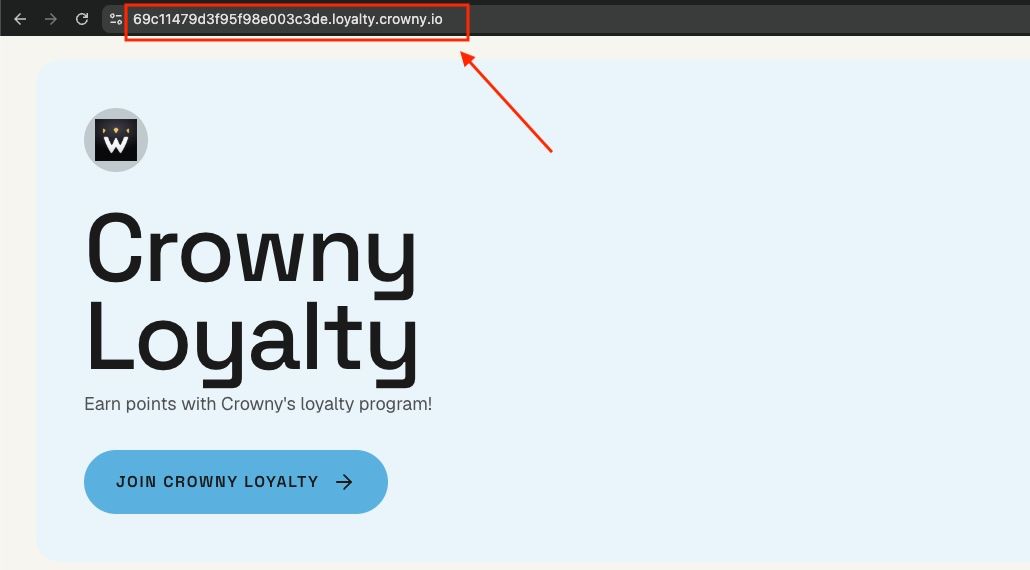
Your Loyalty Page URL will look similar to:
xxxxx.loyalty.crowny.io
For example:
Step 2: Create a CNAME Record
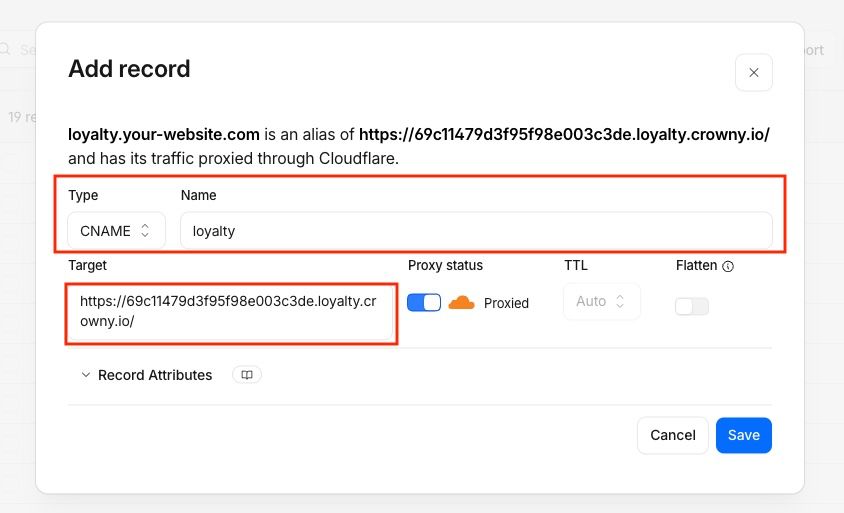
Log in to your domain/DNS provider (Cloudflare, GoDaddy, Namecheap, etc.) and create a new CNAME record.
Use the following values:
- Type: CNAME
- Name / Host: loyalty
- Target / Points to: xxxxx.loyalty.crowny.io
- TTL: Default or Auto
This configuration will map:
to:
Note: DNS changes can take anywhere from a few minutes to up to 24 hours to fully propagate, depending on your DNS provider.
Step 3: Verify the Custom Domain
Once the DNS record has propagated:
- Open a browser.
- Navigate to your custom loyalty URL: https://loyalty.your-website.com
- Your custom loyalty URL now redirects to the loyalty page
Result
After setup is complete, customers can access your loyalty program using your branded URL:
https://loyalty.your-website.com
The page content will continue to be served from your Crowny Loyalty Page behind the scenes.
Need assistance?
Get in touch with our support team.